Guide
How do you move a series from Ichigo Reader to Bublate?
Keep your source pages, not the translated ones. Ichigo returns flat images and keeps its glossary inside each PDF or ZIP upload, so no names or terms carry over. In Bublate, make a new series and put the names in its series bible. Then upload the source chapter, check it in the editor and export it.
Table of contents
Ichigo Reader (the site now says Manga Translator) is a reading tool. Some creators and teams also use it to get a fast draft of their own chapters. This guide is for them. You own the series or have the rights to translate it, and you now want pages to publish. It covers what to save from Ichigo, what you rebuild in Bublate, the steps, and the cost on both sides. For a full look at Ichigo itself, read the Ichigo Reader review.
Why do people move from Ichigo for their own comics?
Ichigo is built to read a chapter now, and it does that well for many users. The reasons to move come from what its own site lists, read on 21 November 2026:
- No page editor. The plans and upload screens list models, limits and downloads. We found no tool to change a line, move text or fix a bubble before you save.
- No series memory. Tier 1 adds "full context + glossary on pdf and zip uploads." The upload screen shows "Building context + glossary" for each job. We found no screen where you write or read that glossary, and nothing that carries it to the next chapter.
- Three source languages. Ichigo reads Japanese, Chinese and Korean. English OCR is a Tier 2 benefit.
- A watermark below Tier 2. Ichigo lists "No watermark" only on Tier 2, at $19.99 a month.
- Sound effects. Ichigo's pages do not say that it redraws sound effects in the art.
Users also report slow pages and phone overlay problems in store reviews. Our review and alternatives page list those, with dates.
What carries over, and what does not?
| Item | From Ichigo | In Bublate |
|---|---|---|
| Source pages | Yours already. Keep the original files, not only the translated downloads | Upload the same files: images, a folder, ZIP, CBZ or PDF |
| Translated pages | Flat images with the text drawn in. Download them now: the upload screen has an "Expired" state for old jobs | Do not upload them. Bublate translates from the source language, so it needs the source pages |
| Glossary and names | Built inside each PDF or ZIP job. We found no way to read or export it | Write them once in the series bible, or paste a list into Import |
| Fonts | No font choice on the upload screen | Comic fonts in the editor, and your own licensed fonts under Your fonts |
| Corrections | No editor, so none to keep | Translation memory keeps the lines your team corrects, from chapter 1 on |
| Subscription | Billed by Ichigo, Apple or Google | Credits, a monthly plan or packs. Nothing carries over |
Translated pages you made with Ichigo are still only a draft of your own work. If the series is not yours, you need the rights holder's written permission before you publish any translation of it. See upload rights.
How do you move a series, step by step?
- Collect the source files. Put the original pages of each chapter in one folder, ZIP, CBZ or PDF per chapter. Ichigo takes files up to about 350 MB. Bublate takes up to 30 MB a page and 1000 pages a chapter.
- Write down the names. List every character, place and term you want fixed, with the spelling you want. Read your Ichigo drafts for the names you liked. Use the glossary template if you start from nothing.
- Sign up. A new account gets 30 free credits, with no card.
- Make the series first. In the library, click New series. Give it a title, a source language and a format.
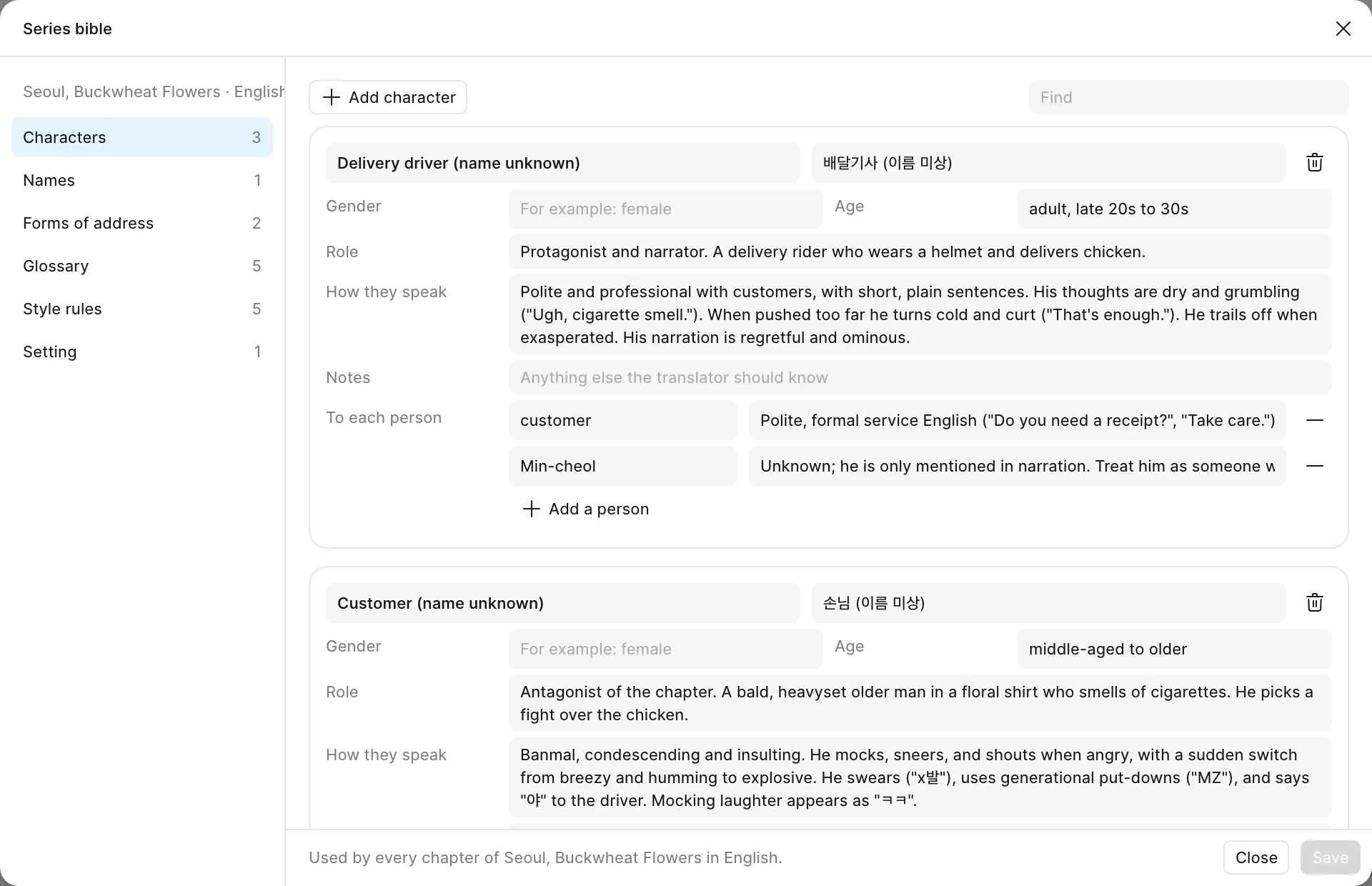
- Fill the series bible. In the Series bible window, click Import and paste your list. Bublate fills the fields and saves nothing until you click Save. The series bible template has the file shape. See series bible help.
- Upload chapter 1. Drop the folder or file, pick the target language and read the price before you start.
- Check the chapter. Open it in the editor. Fix lines, sound effects and bubbles, and follow the review flags. Mark it done when it is ready.
- Export. Pick the preset for your platform, or a layered PSD per page. See export sizes and PSD.
- Upload the rest. Click Upload many chapters in the New chapter dialog. Each folder, ZIP or CBZ is one chapter, up to 300 a batch.
Translation memory has nothing to import from Ichigo. It starts with chapter 1: each line your team corrects comes back as the same text in later chapters. See file formats for every type the upload takes.
What does each one cost?
They charge for different things. Ichigo sells a monthly plan. Bublate charges by the chapter or the page, for each target language. Ichigo prices are from its plans page, read on 21 November 2026. App Store prices are higher.
| Plan | Price | What you get |
|---|---|---|
| Ichigo free trial | $0 | 40 extension translations and 20 image uploads in total |
| Ichigo Tier 1 | $5.99 a month or $59.99 a year | Unlimited extension translations, 300 image uploads an hour, context and glossary on PDF and ZIP uploads |
| Ichigo Tier 2 | $19.99 a month or $199.99 a year | Tier 1, plus Tier 2 models, English OCR and no watermark |
| Bublate, new account | $0 | 30 free credits, once |
| Bublate, by the chapter | $3 a webtoon chapter of up to 20 segments, up to $0.60 a manga page | A cleaned and lettered chapter with sound effects, an editor and exports |
| Bublate, monthly plans | Creator $19 (100 credits), Studio $69 (500), Publisher $229 (2,000) | Plan credits reset each month |
| Bublate, credit pack | $149 for 1,000 credits | Credits for chapters at any time |
For reading many chapters, Ichigo costs less. Bublate costs more per chapter because it returns pages to publish. You get cleaned art, lettering fitted to each bubble, redrawn sound effects and one series bible. The full price rules are on pricing.
How do you stop paying for Ichigo?
Cancel where you paid. Ichigo's own text says: "Your subscription is billed through %SOURCE%. Plan changes and cancellation have to be done there." Manage a plan bought on ichigo.moe from your Ichigo account. Cancel a plan bought in the iPhone or Android app in your App Store or Google Play subscriptions. Download any translated pages you want to keep first.
What does Bublate not do?
- No browser extension, no phone app and no desktop app. It does not translate pages on other websites.
- No translation of chapters you do not have the rights to.
- No unlimited plan. Each chapter costs credits in each target language.
- No final check. A person who reads both languages still checks names, jokes and register before release.
Still deciding? Bublate vs Ichigo Reader puts the two side by side. If you also used Immersive Translate or mangatranslate.com, read moving from Immersive Translate or moving from mangatranslate.com.
Frequently asked questions
Can I import my Ichigo glossary into Bublate?
Not directly. Ichigo builds its context and glossary inside each PDF or ZIP upload, and we found no screen to read or export it. Write the names and terms you want in a plain list, then paste the list into Import in the Bublate series bible. Bublate fills the fields and you save them.
Can I upload pages Ichigo already translated?
You can, but do not. Those pages have the translation drawn into the art, so Bublate would start from the new language, not the source. Upload the original pages. Bublate removes the source text, letters the translation and redraws the sound effects from them.
Does Bublate have a browser extension like Ichigo?
No. Bublate is a web app at bublate.com, with no extension, phone app or desktop app. It does not translate pages on other websites. You upload chapters you own or have the rights to, and you get lettered pages back to publish.
Is Bublate cheaper than Ichigo?
Not for reading. Ichigo Tier 1 is $5.99 a month for unlimited extension translations. Bublate is $3 a webtoon chapter of up to 20 segments and up to $0.60 a manga page. That is for each target language, after 30 free credits. It costs more because it returns cleaned, lettered pages with an editor.
How do I cancel Ichigo before I switch?
Cancel where you paid. Manage a plan bought on ichigo.moe from your Ichigo account. Cancel a plan bought in the iPhone or Android app in your App Store or Google Play subscriptions. Download the translated pages you want to keep first.