Editing
How do I export a translated chapter at the right size?
Click Export in the editor and pick a platform under Export for. Bublate cuts the chapter to that platform's width and height, in the gutters between panels, and keeps each image under its file size limit. You get one ZIP. Pick Pages as uploaded to keep your page sizes, or Layered PSD (Photoshop) for one editable file per page.
Which platform presets are there?
| Export for | Width | Height per image | File limits |
|---|---|---|---|
| WEBTOON CANVAS | 800 px | up to 1280 px | 2 MB each, 20 MB and 100 images per episode, JPG or PNG |
| Naver Webtoon 도전만화 | 690 px only | no limit (cut at 2000 px) | JPG, 5 MB each, 50 MB per episode |
| Tapas | 940 px | no limit (cut at 2000 px) | 10 MB each. Tapas ends service on 31 March 2027. |
| LINE Manga Indies | 800 px | 600 to 10000 px (cut at 2000 px) | 2 MB each, up to 1000 images |
| Jump Rookie | 800 px | up to 20000 px (cut at 2000 px) | up to 200 images and 200 MB per episode |
Where a platform has no height limit, Bublate cuts at 2000 px. That is our choice for phone readers, not a platform rule. The width is never scaled up, except for Naver, which takes 690 px only. The full list with quotes from each platform is in webtoon export sizes. If you post on Tapas now, read what to do after Tapas.
How do I export?
- In the editor, click Export at the top of the right panel, or press Shift+Cmd+E.
- Under Export for, pick a platform, Pages as uploaded, Segments, Full strip or Layered PSD (Photoshop).
- Under Content, pick Everything, Text only or Images only.
- Pick the Format (JPG or PNG) and the JPG quality (60 to 100, 90 is the default). The dialog shows the image count and an estimate of the ZIP size.
- Click Export. The ZIP downloads, and the chapter is marked Exported.
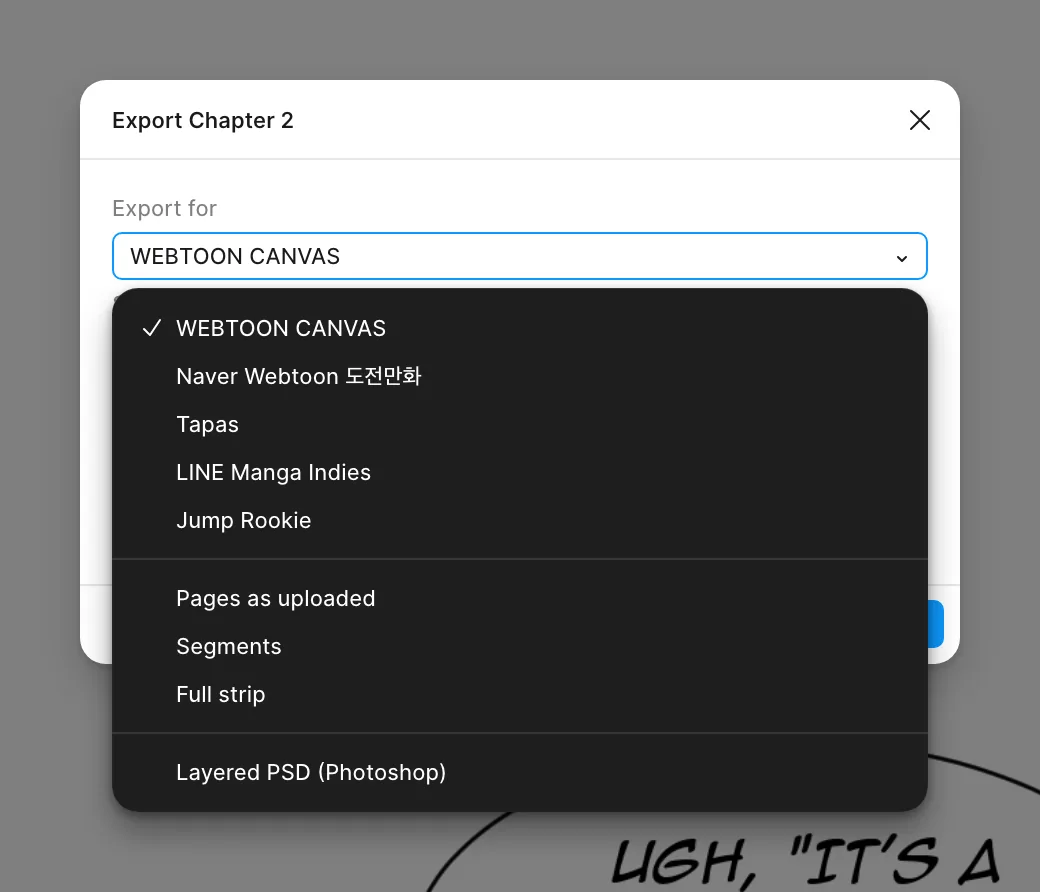
The export is drawn in your browser from the same text you see in the editor, so the files match the screen. Cuts go into the flat gutters between panels and never through a text block or its bubble. An edit after the export moves the chapter back to Done or In review.
When should I use the layered PSD?
Use it when a letterer finishes the pages in Photoshop, or when a publisher wants editable files. A page over 30000 px is cut into parts. Chapters lettered before layers existed put their text into the image, with no text layers. To fix pages before export, see edit a page. For lettering choices, see how to letter a webtoon and the comic lettering tool.
Frequently asked questions
What size should a WEBTOON CANVAS image be?
WEBTOON's own handbook says an image must be less than 800 px wide and 1280 px long, 2 MB at most, with up to 20 MB and 100 images in total. Only JPG and PNG are taken. The WEBTOON CANVAS preset in Bublate cuts and checks to these limits.
What is in the layered PSD?
One PSD per uploaded page. From the bottom: the clean page with no lettering, then groups for sound effects, captions and dialogue with one layer per block, then the original page, hidden. Next to each block is a hidden text layer with its font, size, leading, tracking, colour and strokes, so you can edit it in Photoshop.
Can I export only the lettering or only the clean art?
Yes. Under Content, pick Text only for the lettering on a transparent ground (PNG), to place over your own art. Pick Images only for the clean pages with no lettering. Everything gives the finished pages.
What if an image is over the platform limit?
Bublate saves a JPG again at 5 points lower quality, down to 60, until it fits. If an image is still too big, or there are too many images, the dialog warns you before and after the export. PNG files are larger, so the dialog suggests JPG when PNG may be over the limit.
Sources
- WEBTOON Creators Resource Handbook, "Formatting for WEBTOON" · checked
- Naver Webtoon help, 도전만화 등록 방법 (how to post to 도전만화) · checked
- Tapas Creators, Creating a comic episode · checked
- Tapas end of service FAQ · checked
- Jump Rookie help (画像ファイルの推奨サイズと制限) · checked