Editing
How do I edit a translated page?
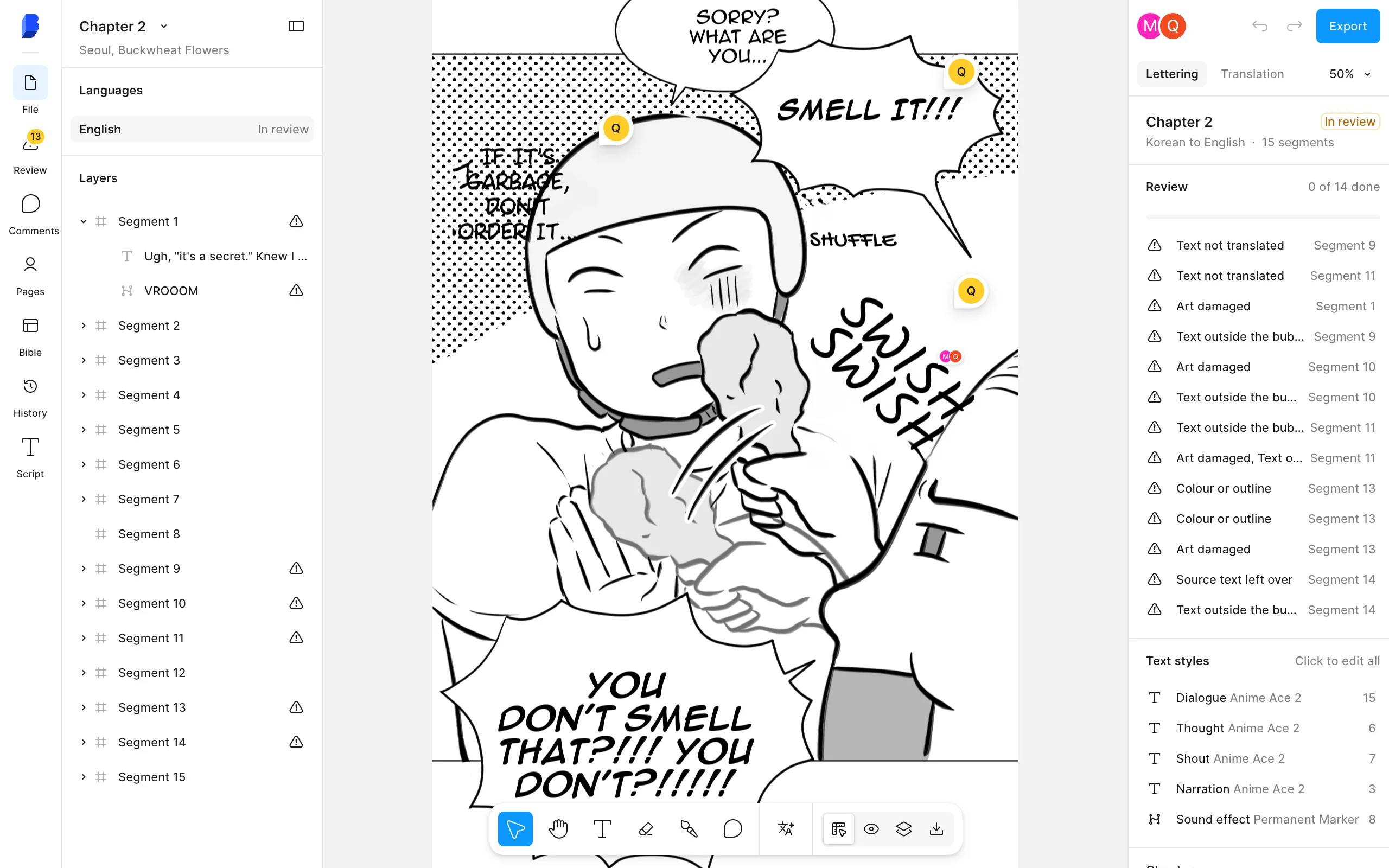
Open the chapter in the editor and double-click a bubble to type on the page. The text wraps inside the bubble as you type. The right panel sets the font, size, strokes and style. Brushes erase leftover marks or bring back the original art. Each edit letters its part of the page again in seconds, and edits cost no credit.
How do I change a line of text?
- In the Library, open the chapter menu and pick Open in the editor.
- Double-click a bubble, or select it and press Enter. Type the new text. It wraps inside the bubble as you type.
- Press Escape or click outside to finish. Bublate letters that part of the page again in the background.
To get a new translation instead, select the block, type a note such as "shorter" or "more formal" in the right panel and click Translate again. Select several blocks first to translate all of them again. The new translation follows the names and terms in the series bible.
How do I fix the lettering?
Select a block. The Lettering tab in the right panel sets the style (Dialogue, Thought, Whisper, Shout, Narration and more), the font, size, leading, tracking, horizontal scale and alignment, the strokes (outside, centre or inside), the fill opacity and a drop shadow or glow. On the page, the frame around the text moves and shapes it: drag a side to set the box width, drag a corner to scale the type, drag outside a corner to rotate (hold Shift for 15° steps). Cmd+B makes the selected words bold. For the craft behind these settings, read how to typeset manga and manga typesetting.
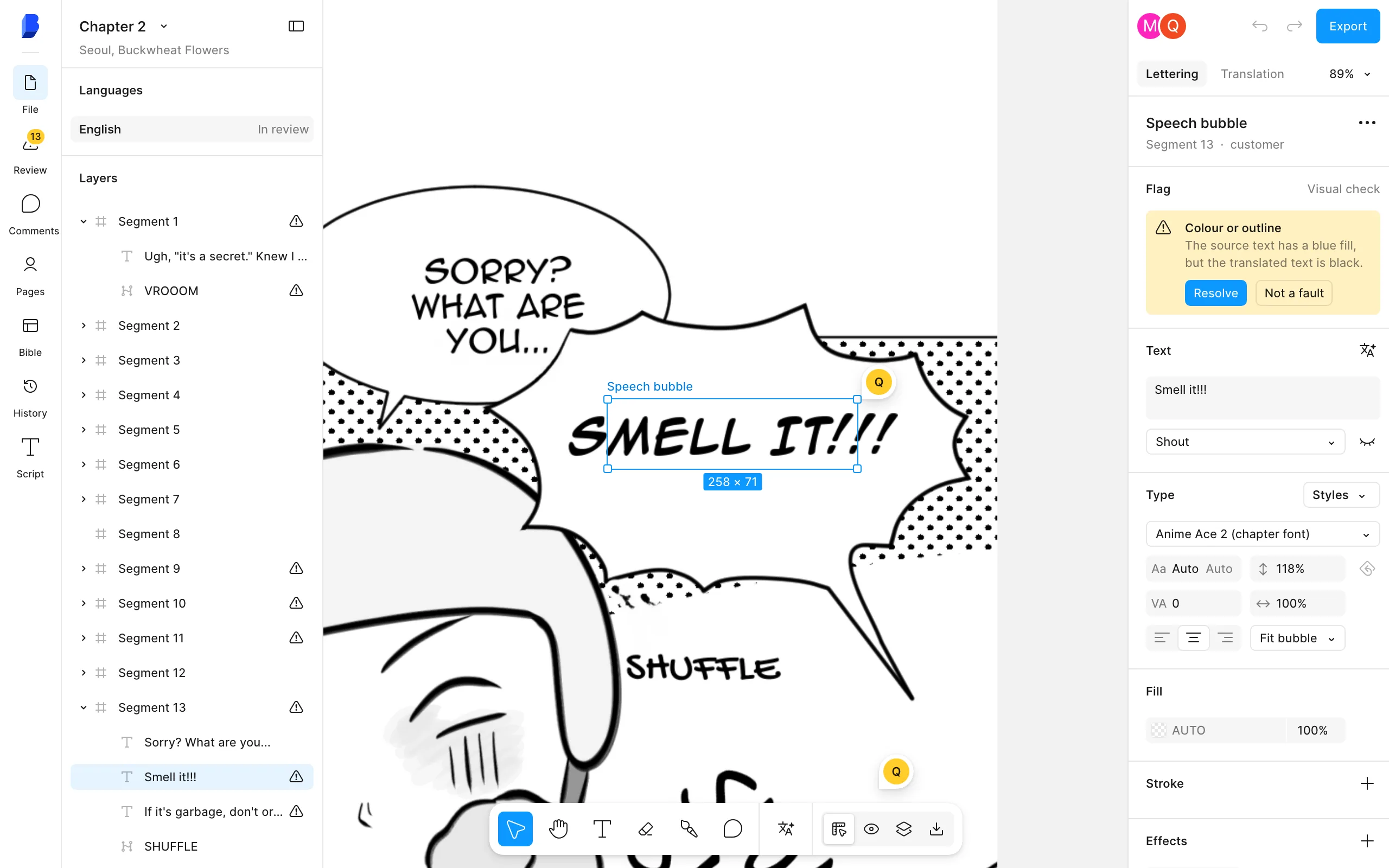
To change many blocks at once, Shift-click or Cmd-click them. The panel then edits all of them. Fonts that your team owns can be uploaded to the font menu under Your fonts.
Which tools fix the image?
| Tool | Key | Use it when |
|---|---|---|
| Add text the scan missed | T | A bubble or caption was not found. Drag a box around it, and Bublate reads and translates it. |
| Erase brush | E | A mark of the source text is left on the page. Paint over it. |
| Restore brush | R | The erase took some art with it. Paint the original art back. |
| Comment | C | You want a teammate to check a block or a spot. |
| Move and Hand tool | V and H | Select and move blocks, or move around the page. |
You can also place an image, replace a page image with your own clean raw, or put back the original image. For what each fix looks like, see manga cleaning and sound effect translation.
How do I mark a page as checked?
Open the Review tab on the left. Each flag is a spot that the automatic check wants a person to look at. Click a flag to open its block, then resolve or dismiss it. Click Mark done on each segment, or Mark all done. Only segments with text count. When the chapter is ready, click Export at the top of the right panel. See export sizes and PSD.
Frequently asked questions
How do I see the original page while I edit?
Hold S, or hold the button in the toolbar, to see the source page in place. Release it to go back. For a longer check, pick Compare with source and drag the line, or Source and translation side by side, which puts both pages next to each other with one scroll and zoom.
Can I keep a sound effect as it is drawn?
Yes. Select the sound effect and pick Keep the original art. To keep the drawn sound effect and add a small translation next to it, pick Art and caption. To letter it again later, pick Letter the sound effect instead.
How do I remove a box that is not text?
Select the block and press Delete, or pick Delete block in its menu. The block leaves the page and the list, and the art under it stays as drawn. Cmd+Z brings it back. You can also find it under File, then Deleted, and click Bring back.
Can I change one name in every bubble?
Yes. Press Cmd+F to open the Script view with find and replace. It searches every line of the chapter, with match case and whole word options. To change a name in later chapters too, change it in the series bible.
Can I undo an edit?
Yes. Cmd+Z undoes and Shift+Cmd+Z redoes every edit. Typing in one field counts as one step. The History tab keeps each save with who made it and when, and you can put a block back to an earlier version.